Dell WD15 Docking Station: Beginner Guide to Clean Desk Setups
Setting up a home office or study space often turns into a frustrating tangle of power bricks, monitor cords, and accessory cables. For beginners and remote professionals, reconnecting several peripherals every time…
By Tara Sanderson 8 min read


Our verdict
Scores are out of 10, based on listed specifications and buyer feedback — not from testing of our own
The Dell WD15 Docking Station provides a dependable and accessible desktop hub for users who want to eliminate cable clutter and expand their laptop screen space. It combines multi-screen video output, responsive data transfer, and laptop charging into a straightforward package built for daily office productivity.
- Single-cable connection for power, display output, and peripheral data
- Dual and triple display support running up to 2K resolution at 60Hz
- Integrated charging delivering up to 100W Power Delivery over USB-C
- Generous port selection including HDMI, Mini DisplayPort, and five USB ports
Where to buy
at Amazon Prime
Price taken from the listing on 18 Sep 2026 and it can change at any time. We may earn a commission if you buy through this link.
Pros
- Single-cable docking for power, display, and peripherals
- Dual and triple monitor support up to 2K resolution
- Up to 100W Power Delivery over USB-C
- Built-in Gigabit Ethernet and 3.5mm audio
- Five USB ports for wide accessory compatibility
Cons
- Single 4K display output capped at 30Hz
- Requires host DisplayPort over USB-C support
- Listing shows conflicting 120W and 130W wattage
As Amazon Associates, we earn from qualifying purchases. This means we may receive a small commission at no extra cost to you if you click through and make a purchase.
Setting up a home office or study space often turns into a frustrating tangle of power bricks, monitor cords, and accessory cables. For beginners and remote professionals, reconnecting several peripherals every time you return to your desk wastes time and causes unnecessary wear on fragile notebook ports. The Dell WD15 Docking Station solves this daily hassle by consolidating external displays, wired internet, desktop audio, and USB accessories into one central hub. Instead of plugging in multiple cords each morning, you connect a single cable to your computer and instantly unlock an organized, desktop-style workspace.
In this beginner-focused Dell WD15 laptop dock review, we examine how effectively this hardware hub bridges portable computing and desktop productivity. Delivering integrated power alongside versatile video connections, the unit offers first-time dock buyers a clear path to an efficient multi-screen setup without complex technical configurations. While designed for standard daily productivity rather than high-refresh competitive gaming, it provides a stable and clutter-free desk upgrade for compatible notebooks.
Dell WD15 Docking Station Features Explained
Video Output and Dell WD15 Monitor Support
Connecting external displays is the primary reason most people invest in a hub, and Dell WD15 monitor support provides versatile options for daily tasks. The dock includes one 4K HDMI port and one Mini DisplayPort hardware interface. When running a single screen through the HDMI connection, the dock supports 4K resolution at 30Hz, which delivers sharp text for spreadsheets, documents, and web browsing.
For users who need more digital screen space, the unit handles Dell WD15 dual display and triple display configurations up to 2K at 60Hz. That 60Hz refresh rate ensures smooth window movement and comfortable viewing during long workdays. While power users seeking dual 4K monitors at 60Hz may prefer newer options like the dell wd19s docking station, the WD15 handles standard multi-screen productivity with ease.
Host Compatibility and Dell WD15 USB C Compatibility
Establishing a successful setup requires matching ports, and Dell WD15 USB C compatibility centers around laptops supporting DisplayPort over USB-C or Thunderbolt 3. Because the dock routes video, data, and power across one line, your computer port must support DisplayPort alternate mode rather than basic data transfers. The dock works smoothly with compatible notebooks, laptops, and desktop computers featuring these modern connection standards.
Confirming your computer connection standard avoids setup confusion before unboxing. Traditional USB Type-A ports or entry-level USB-C data ports cannot carry video signals through the dock without native alternate mode support. For owners of compatible business machines, this architecture provides true plug-and-play operation without requiring specialized third-party display drivers or complicated background utilities.
Integrated Charging and Dell WD15 Power Delivery
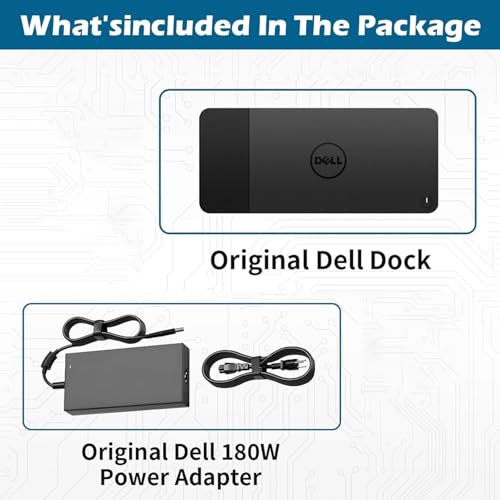
Managing separate charging bricks adds unwanted clutter to a clean desktop workspace. The Dell WD15 power delivery setup solves this problem by pairing the dock with an external power supply. The listing specifies a 130W AC adapter capable of up to 130W total power output, while the specification table lists 120W. Through its USB-C connection, the dock supplies up to 100W Power Delivery directly to your computer.
This power level keeps your machine charged throughout intensive workdays while simultaneously powering connected storage drives and desk peripherals. It also allows you to leave your original travel charger packed safely in your bag. While high-demand enterprise workstations requiring extreme power might look toward the dell wd22tb4 docking station, the WD15 easily handles everyday business and student laptops.
Peripheral Connectivity and Dell WD15 Ports Explained
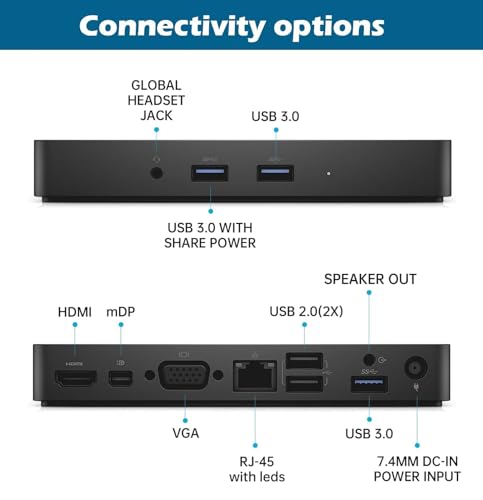
Having Dell WD15 ports explained clearly helps first-time users organize their everyday desktop gear. The unit features nine total ports designed to accommodate modern and legacy accessories. High-speed file transfers are managed by a USB 3.1 port supporting 10Gbps and two USB-C ports that also support 10Gbps data transfer alongside 100W Power Delivery. Three additional USB 3.0 ports provide reliable connections for external backup drives and webcams.
To support everyday office peripherals, the dock includes two USB 2.0 ports that are well suited for wireless keyboard and mouse receivers. A built-in 3.5mm audio jack lets you connect desktop speakers or headphones directly through the dock. Additionally, an integrated Gigabit Ethernet port provides a fast, stable wired network connection that avoids the dropped signals and lag common to busy home Wi-Fi networks.
Straightforward Dell WD15 Setup for Beginners
First-time dock buyers often worry about complicated software configurations, but the Dell WD15 setup for beginners is simple and quick. The initial installation requires connecting the external power adapter to a wall outlet and plugging the barrel connector into the dock. Next, connect your monitors via HDMI or Mini DisplayPort, plug in your mouse and keyboard, and insert the main USB-C cable into your laptop.
Because the dock uses native DisplayPort alternate mode video signaling, compatible operating systems recognize attached displays and peripherals automatically. You do not have to install intrusive software or change complex system settings to achieve a functional Dell WD15 multi monitor setup. Windows and compatible operating systems manage your screens through standard display menus, letting you reposition desktop monitors with simple drag-and-drop actions.
Specs
| Hardware Interface | DisplayPort |
|---|---|
| Compatible Devices | Notebook, Monitors, Laptops, Desktops |
| Total USB Ports | 5 |
| Total Number of Ports | 9 |
| Video Ports | 1 x 4K HDMI, 1 x Mini DisplayPort |
| Power Output / Wattage | 120W (Listing also specifies 130W AC Adapter with 130W output) |
| Power Delivery | Up to 100W Power Delivery via USB-C |
| Manufacturer / Brand | FKA / Thedocksexpertatyourside |
| Warranty Description | 1-Year replacement and maintenance support |
As published by the manufacturer on the Amazon listing.
Buy it if
Best Use Cases
- Expanding a laptop workstation into a dual or triple screen desk setup running up to 2K resolution.
- Consolidating messy workspace cables from monitors, webcams, mice, and keyboards into one central unit.
- Powering and charging compatible USB-C laptops with up to 100W Power Delivery without unpacking travel chargers.
- Connecting to high-speed Gigabit Ethernet networks for reliable video conferences and large file transfers.
Think twice if
Before You Buy
Before purchasing this docking station, check your computer specifications to ensure proper port compatibility. The unit requires a laptop equipped with DisplayPort over USB-C or Thunderbolt 3 to output video and supply power across one connection. Laptops featuring standard USB Type-A ports or USB-C ports limited strictly to data transfer cannot output video through this dock. In addition, users operating power-heavy machines like the alienware 16 aurora gaming laptop should know that gaming computers generally demand dedicated high-wattage power supplies beyond what standard 130W docks provide.
Buyers should also note several details that the product listing does not specify. The listing does not specify the precise length of the attached USB-C host cable, nor does it list the physical dimensions or chassis weight. Furthermore, the listing shows minor discrepancies, mentioning a 130W AC adapter in the title and text while listing 120W in the technical specifications table. If your monitor uses a standard full-size DisplayPort connection, you will need a Mini DisplayPort to DisplayPort cable, which the listing does not explicitly include in the package.
Bottom Line
Determining whether the Dell WD15 is worth it comes down to your personal workflow needs and display expectations. If you want a dependable dock to organize desktop cables, run dual monitors at 2K resolution, and charge your notebook through one cord, this hardware hub delivers genuine value. It removes daily cable frustration, making it a reliable foundation for home offices, remote jobs, and student workstations.
While professionals seeking dual 4K monitors at 60Hz or modern high-bandwidth units like the anker prime dl7400 might find its single 4K@30Hz limit restrictive, the WD15 handles standard multi-screen productivity admirably. Supported by 1-year replacement and maintenance coverage from the manufacturer, it offers an approachable, beginner-friendly path to a clean and efficient desktop setup.
FAQ
Can the Dell WD15 run two 4K monitors at the same time?
No, the Dell WD15 cannot run two 4K monitors simultaneously. The dock supports single-display 4K resolution up to 30Hz through its HDMI port. For dual display or triple display setups, the hardware supports screen resolutions up to 2K at 60Hz. If your work demands dual 4K screens at 60Hz, you will need a higher-bandwidth docking station specifically rated for multiple 4K outputs.
Does the Dell WD15 charge my laptop while I work?
Yes, the Dell WD15 charges compatible laptops while in use. Powered by its external adapter, the dock delivers up to 100W Power Delivery over its USB-C connection. As long as your laptop supports USB-C charging protocols, it will charge steadily through the single host cable, keeping your battery full throughout the workday.
Will the Dell WD15 work with non-Dell laptops?
The Dell WD15 works with non-Dell laptops that support DisplayPort over USB-C or Thunderbolt 3. The dock uses standard USB-C alternate mode protocols for video transmission and USB Power Delivery for charging. However, you should check your laptop documentation to ensure your manufacturer allows third-party USB-C charging and external display output.
What cables do I need to connect dual monitors to the Dell WD15?
To connect two monitors, you will use the dock HDMI port and Mini DisplayPort connection. One monitor can connect using a standard HDMI-to-HDMI cable. The second screen requires a Mini DisplayPort to DisplayPort or Mini DisplayPort to HDMI cable, depending on your screen inputs. The listing does not specify whether extra monitor cables are included.
What is the difference between USB 3.0 and USB 2.0 ports on the Dell WD15?
The Dell WD15 includes USB 3.0 ports for high-speed devices and USB 2.0 ports for standard accessories. The USB 3.0 ports deliver fast transfer rates suitable for external storage drives, memory sticks, and webcams. The USB 2.0 ports are optimized for low-bandwidth devices like wireless mouse and keyboard dongles, keeping high-speed ports open for larger file transfers.
Where to buy
at Amazon Prime
Price taken from the listing on 18 Sep 2026 and it can change at any time. We may earn a commission if you buy through this link.
More Accessories & Peripherals
See the section


Get our picks by email
New reviews and the prices we spotted, once a week.